How to Transition from Another EMR to OpenEMR
It’s a big step to switch to a new Electronic Medical Record (EMR) system. However, with the right tools and clear directions, the transition can lead to greater control, better performance, and lower costs. Today, it is common for medical practices to move to OpenEMR, an open-source system known for being adaptable and inexpensive.
If you are thinking of making the switch, you are not alone. In fact, more clinics choose OpenEMR every year because it works well for both small practices and large health groups. The key is to plan ahead and understand each step of the process. This guide walks you through the full migration journey.
Why Migrate to OpenEMR?
OpenEMR is a no-cost, open-source EMR and practice management system. It includes electronic prescribing, patient charting, billing, scheduling, and lab integration. One of its greatest benefits is that you can customize it based on your workflow needs.
Some reasons why practices switch over:
No license fees: OpenEMR has no installation cost.
Custom design: Practices can adjust the platform according to their workflows.
Full data control: You aren’t locked into a third-party vendor.
HIPAA compliance: The interface is designed to protect sensitive patient data.
Strong community support: Developers and healthcare users constantly improve it.
Additionally, one increasingly popular feature is the incorporation of OpenEMR feature images and videos into content. This makes system training, internal documentation, and patient education easier.
Step-by-Step Guide to EMR Migration
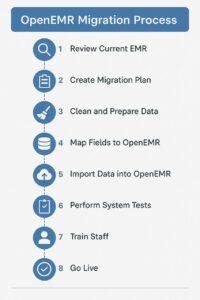
Step 1: Review Your Current EMR
Start by reviewing what your current EMR contains. Since systems store data differently, you must identify:
Types of data (patient history, visits, lab results)
Data format (CSV, XML, HL7, SQL)
Whether your vendor allows data export
Understanding your system clearly will make planning easier.
Step 2: Create a Migration Plan
Before moving any data, create a plan that outlines:
What data will be migrated
When migration will occur
Who will manage the process
What tools you’ll use to clean and move the data
Backup procedures in case of errors
Communicate this plan with your team so everyone understands their role.
Step 3: Clean and Prepare the Data
Once your data is exported, review it carefully. Over time, EMRs collect outdated or duplicate data. Cleaning your data now will reduce errors later.
Here’s how to prepare:
Remove duplicate patient records
Fix typos and missing values
Standardize phone numbers and addresses
Update diagnosis codes and billing details
Good preparation improves OpenEMR’s performance after import.
Step 4: Map Your Fields to OpenEMR
Every EMR uses different field names. Therefore, you must map each field from your old system to its matching field in OpenEMR. This process is known as data mapping.
Step 5: Import the Data into OpenEMR
After mapping and cleaning, you can start importing your data. You may use:
SQL queries
OpenEMR import scripts or modules
External healthcare migration tools
Always test with a small dataset first. This ensures everything imports correctly before you process all your data.
Step 6: Perform Complete System Tests
Testing confirms your system is ready for daily use. Create a checklist to verify:
Patient records display correctly
Appointments book properly
Billing codes work as expected
Lab reports and medications appear accurately
Navigation and load times are acceptable
Encourage each department to test their workflows to catch issues early.
Step 7: Train Staff and Get Ready to Go Live
Even powerful software can cause problems if users don’t know how to use it. Therefore, hands-on training is essential.
Train each role:
Receptionists: Scheduling and check-in
Nurses: Charting, medications, communication
Physicians: Charts, labs, prescribing
Billing staff: Claims, invoices, insurance reports
Using OpenEMR feature images and videos during training helps users learn faster. For smoother adoption, start with a soft launch and operate both systems briefly in parallel.
Step 8: Go Live and Monitor the System
Once training and testing are complete, you’re ready to go live. Ideally, switch over during a slow period.
Key things to watch:
System speed and stability
User questions or confusion
Missing or incorrect data
Billing errors or rejected claims
Having IT experts like Qiaben available can resolve issues quickly.
Common Issues and How to Overcome Them
1. Data Compatibility
Older systems may store data in formats OpenEMR cannot read, causing conversion issues.
2. Disruptions to Workflow
Changes in screen layout or forms can confuse long-time users
3. Privacy Issues
Patient data must be protected throughout the transition, following HIPAA rules.
4. Staff Resistance
Some employees resist change or feel comfortable with the old system. Include them early and let them test the new system before rollout..
A Real-Life Success Story
A three-clinic pediatric practice left a commercial EMR due to high fees. They worked with Qiaben to migrate to OpenEMR. After reviewing and cleaning their records, the data was exported successfully. Custom templates and graphics, including OpenEMR feature images/videos, helped simplify training.
Within the first month, the clinic reported better system performance and lower operating costs.

How Qiaben Helps with OpenEMR Migration
Migrating alone can be challenging. This is why many clinics choose Qiaben. Their team handles:
Data export and cleaning
Field mapping and data import
Staff training and visual documentation
Post-launch support
With expert guidance, you can avoid costly mistakes.
FAQs
How long does migration take?
Small clinics usually take 2–4 weeks. Larger organizations may require up to 6 weeks.
Will my data be safe?
Yes. All communication is encrypted, and the team follows HIPAA standards.
If I use a cloud EMR?
Qiaben can extract your data even from cloud-based systems.
Do I need coding skills to utilize OpenEMR?
No. Most users operate the system without any coding. Developers can perform custom work if needed.
Can I see feature images and videos?
Yes. You can use OpenEMR feature images and videos in training materials, documentation, and manuals.
Final Thoughts
Switching EMRs doesn’t have to be stressful. With proper planning, you can move smoothly to OpenEMR. The software offers flexibility, cost savings, and custom features that most commercial EMRs cannot match.