How to Install OpenEMR on Windows: Step-by-Step Tutorial
Need assistance installing OpenEMR on a Windows machine? Regardless of what your role may be – whether you are a medical caregiver, an IT administrator, or simply an investigator who requires medical software solutions – this article is focused on assisting you through it with ease.
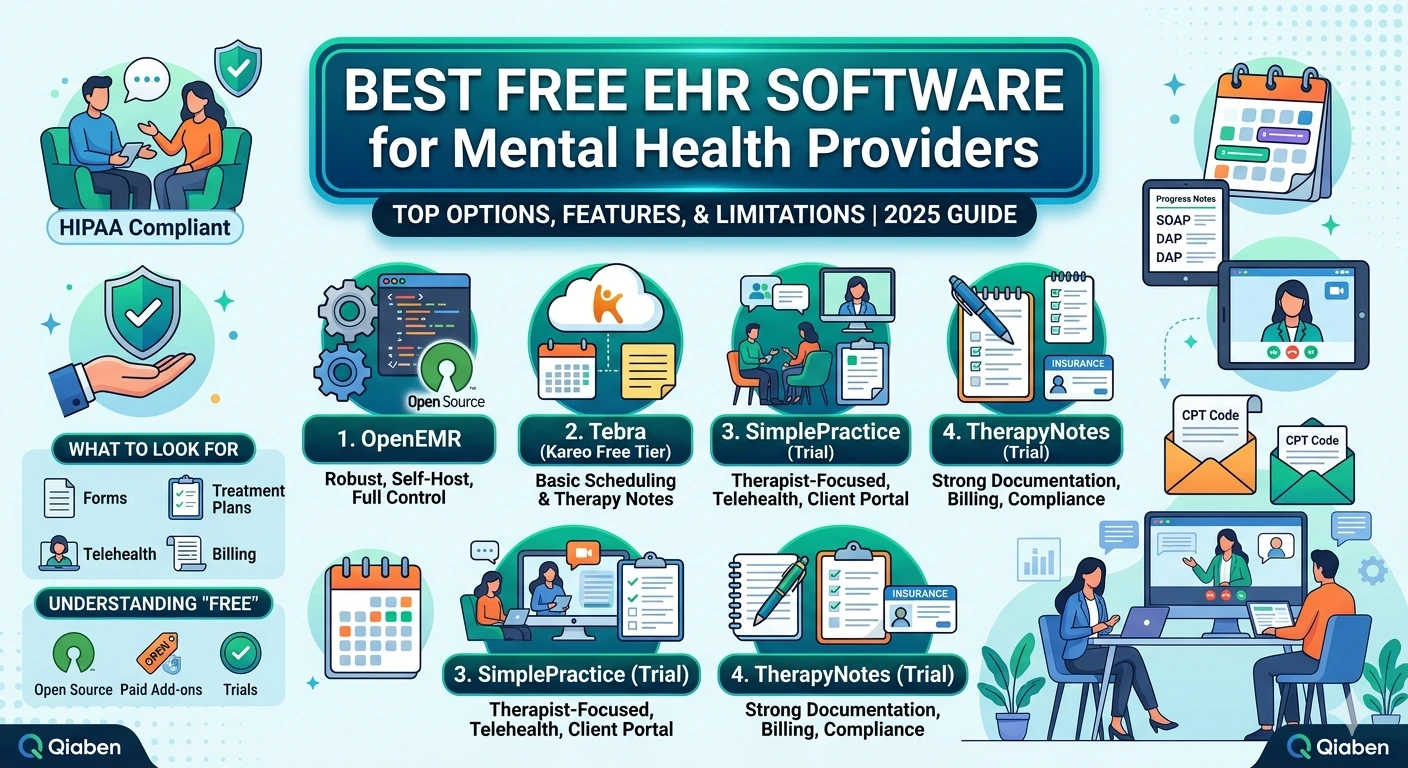
OpenEMR is an open-source electronic medical record and practice management software with high capacity. OpenEMR has a variety of utilities in scheduling, billing, clinical documentation, and tracking patients. The most used open EMR utility is that it is supported on a variety of operating systems, one of which is Windows.
Here we are going to instruct you step by step how to install OpenEMR on a Windows computer. It’s really simple and easy to understand for a beginner, so don’t worry if you are not an expert on the computer, you can easily install the setup.

What You Need Before Installation
Before proceeding further, make sure your system has the following specifications:
System Requirements
Operating System: Windows 10, 11, or Windows Server (2016 or later)
Processor: Intel Core i3 or equivalent, minimum
Memory: 4GB RAM (8GB recommended)
Disk Space: 2GB free space
Internet Access: For downloading software packages

Software Requirements
In order to install OpenEMR on Windows, you will need:
XAMPP (Apache, PHP, and MySQL)
Step 1: Install XAMPP
XAMPP is a collection of free software that packages Apache, MySQL, PHP, and other modules which need to execute web applications like OpenEMR.
Steps:1
Visit the official XAMPP download page.
Choose the PHP 8.1 or 8.2 version compatible version (OpenEMR is PHP 8.x compatible).
Run the installer in admin mode.
At install, choose components: Apache, MySQL, PHP, phpMyAdmin.
Complete the install and launch the XAMPP control panel.
You now have XAMPP and half way to OpenEMR installed on your system.
Step 2: Download OpenEMR
We can now download the software package for OpenEMR.
Steps:
Go to the official OpenEMR download site.
Download the Windows version.
Unzip the ZIP file.
Copy the copied directory to: C:\\\\\\\\\\\\\\\\\\\\\\\\\\\\\\\\xampp\\\\\\\\\\\\htdocs
Rename folder name to open for convenience to openemr.
Now that the files are in their place, you can now go ahead and install your web server and database.
Step 3: Start Apache and MySQL under XAMPP
Steps:
Open XAMPP’s control panel.
Click “Start” next to Apache.
Click “Start” next to MySQL.
Ensure both services turn green and activate.
In the event it does not work, there could be port conflict. If so, change Apache’s port from 80 to 8080 under “Config” options.
Step 4: Install the OpenEMR Database
OpenEMR employs a MySQL database where all medical data is saved.
Steps:
Open a browser.
Go to: http://localhost/phpmyadmin
Hit “Databases” at top.
Create a new database called openemr.
Create a completely privileged MySQL user for the new database.
Choose a good user name and password. You will be using this when you execute the installation wizard.
Step 5: OpenEMR Installation Wizard
Server booted and database installed, you can now install OpenEMR using your web browser.
Steps:
Go to: http://localhost/openemr
Setup script will execute automatically.
Accept terms and “Continue”.
Choose installation type: “New Install”.
Provide database name, user, and password.
Assign admin username and password.
Follow on-screen directions until done with installation.
This will correctly install your database tables and files. Be sure to take down your credentials for later use.
Step 6: Post-Installation Configuration
You have successfully installed OpenEMR, but post-install configuration needs to be performed for security and performance.
Recommendations:
Remove the setup.php file from the openemr directory.
Change file permissions in key directories to read-only.
Log into OpenEMR with admin credentials at http://localhost/openemr.
Replace default passwords in bulk.
These will keep your OpenEMR environment safe.
Step 7: Fixing Common Installation Issues
Even with a properly documented installation, things can go wrong. Let’s document a few problems and fixes.
Problem: Apache or MySQL won't launch
Solution:
Check another service isn’t hijacking port 80 or 3306.
Change the port number of Apache to 8080 in httpd.conf.
Problem: Blank page during installation
Solution:
Check all the PHP extensions needed are activated in php.ini.
Problem: Denied access errors
Solution:
Check MySQL user has complete privileges.
Double-check for typographical error in username and password.
Such issues typically only require a minute or two to correct and provide a smooth sail thereafter.
Step 8: Check Key Open EMR Features
Having some idea of the core features that make OpenEMR so trustworthy ahead of time is helpful while concluding.
Patient Management: Record demographics, medical history, and documents.
Scheduling: Schedule and book appointments on simple-to-use calendar.
Medical Billing: Accept payments, insurance, and claims.
Multi-Language Support: Provide multilingual patient populations with translation support provided.
User Access Control: Provide administrators and staff and permissions.
OpenEMR functionality lets hospitals and clinics manage operations without paying for proprietary software.
Step 9: Secure Your OpenEMR Installation
Enforce HTTPS with an SSL certificate.
Update the version of OpenEMR.
Enforce strong passwords for all users.
Regularly backup files and database.
Enforce logging and monitoring functionality
Let me know if you’d rather I expand on this answer.
Your system is more secure and less likely to be at risk for data breach, and also for HIPAA type privacy law compliance
Step 10: How Qiaben Can Help You
OpenEMR installation can be daunting, especially for a busy practice. We have the professionals at Qiaben to install, implement, and support OpenEMR healthcare systems for healthcare providers.
Our Services:
OpenEMR installation and migration
Custom module development
Security audits and updates
24/7 support and troubleshooting
System optimization and training
In order to get your OpenEMR system optimized to its full usage potential without the tech headache, we’ve got you covered.
FAQs
Can I install OpenEMR on Windows 11?
Yes, OpenEMR is totally supported on Windows 11.
Is XAMPP the only method to install OpenEMR on Windows?
XAMPP is the easiest method, but it may also be installed using WAMP or manual install.
Does OpenEMR install offline?
Yes, it installs locally on your computer. Network setup is needed for access by multiple devices.
Can I upgrade later?
Yes. OpenEMR has upgrade packages and documentation available.
Installing OpenEMR on Windows is a practical way to gain full control over your practice management system. From patient scheduling to billing and secure record-keeping, OpenEMR has the features your clinic needs to run efficiently. With this guide, you’ve learned every step—from downloading the software to securing the final setup.