Step-by-Step Installation of OpenEMR Clinic: Releasing Open EMR Feature Potential
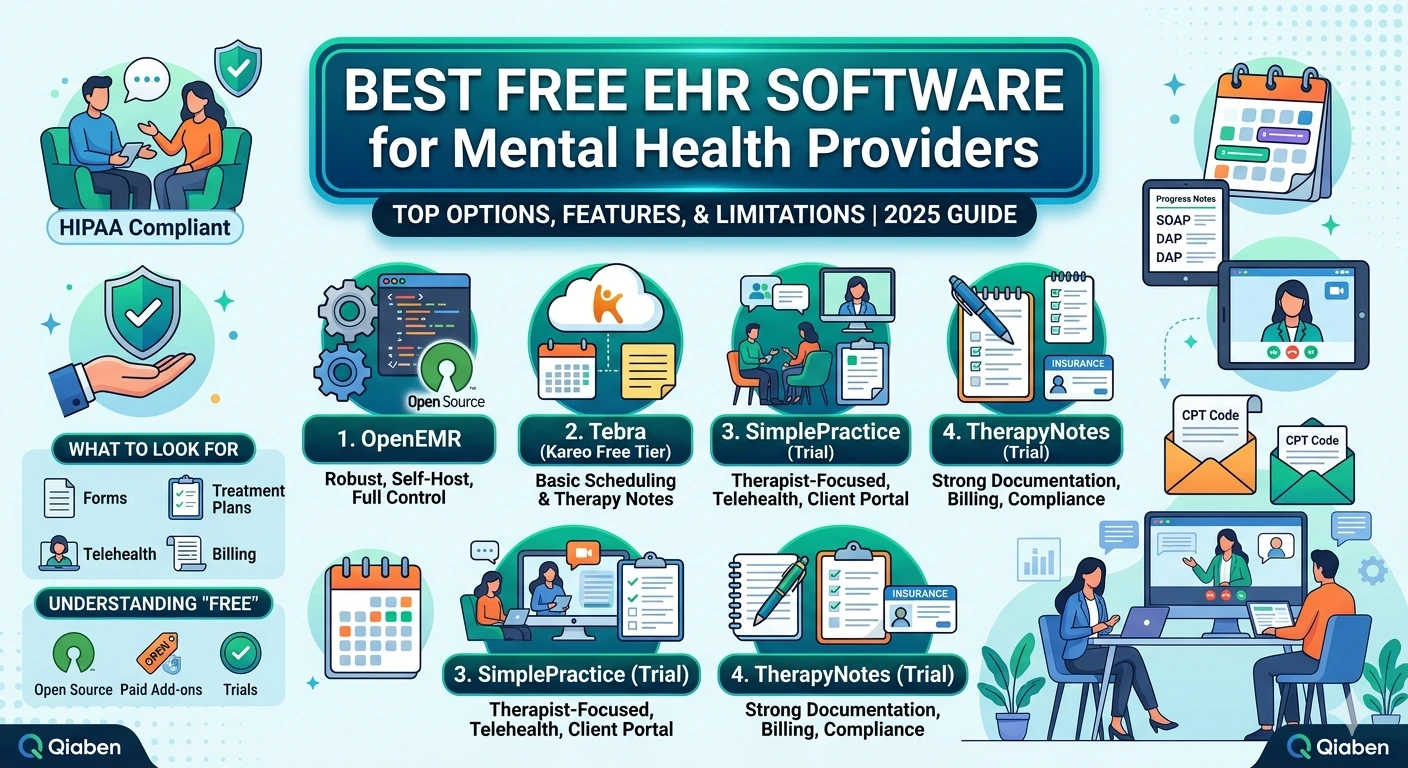
OpenEMR is among the most powerful open-source electronic medical record (EMR) software available today. Clinics in America and abroad are adopting it in an effort to automate, cut down on costs, and acquire patient care within their reach. If you are going to install OpenEMR in your clinic, this guide will walk you through. You will see some of the most noted open EMR feature’s along the way that have made the system so well known among medical professionals.
Why OpenEMR for Your Clinic?
OpenEMR is not your typical EMR. It gives you the full package of tools to operate your clinic. Scheduling and billing, patient records and reporting, you name it. The best part? Open source and free. What that actually means is that you have total control over your data and can tailor the system to whatever you need it to be for your clinic.
Let’s consider how you can have OpenEMR installed and operational within your practice and be able to take advantage of its full functionality.
Prerequisites Before You Start
Prior to installing OpenEMR, set up your system. You don’t need to be a computer wizard, but it will be essential to have proper setup.
System Requirements
Your PC requires the following as minimum requirements to enable OpenEMR to function properly:
Operating System: Windows 10+, Ubuntu 20.04+, or macOS (latest versions)
RAM: 4 GB or more
Processor: Dual-core or better
Storage: At least 10 GB of free disk space
These specs help the system run efficiently, especially when managing a high number of patient records.
Software Requirements
OpenEMR works on a server-based stack. You’ll need:
Apache or Nginx web server
MySQL or MariaDB for database management
PHP (Version 7.4 or above)
If you’re using Windows, XAMPP or WAMP can make installation much easier by bundling these tools into one package.
Step-by-Step Installation Guide for Clinics
Once your system is ready, follow these steps to install OpenEMR and begin exploring its powerful features.
Step 1: Install a Web Server Environment
For Windows, install XAMPP from the Apache Friends website. XAMPP is a bundle that contains Apache, MySQL, and PHP, and these are going to have to be used to run OpenEMR.
Install XAMPP with default settings.
Open the XAMPP control panel and begin the Apache and MySQL services.
For Linux, it is possible to install a LAMP stack using command-line tools. On Mac, one might use MAMP or install each package separately.
Step 2: Download OpenEMR
Then, go to the official website of OpenEMR and download the stable version. Unzip the downloaded zip file to the htdocs folder, if you are using XAMPP, or the corresponding web folder in your installation.
Give the unzipped folder a convenient name to recall, i.e., openemr.
Step 3: Install a Database
Then, you will need to install a database for OpenEMR.
Open phpMyAdmin by visiting http://localhost/phpmyadmin
Click on Databases
Create a new database called openemr
This will store all your clinic records, appointments, bills, etc.
Step 4: Run the OpenEMR Installer
In your web browser, goto http://localhost/openemr. This will display the OpenEMR web installer.
Do what the on-screen instructions instruct you:
Accept the license agreement
Enter database details: use server localhost, database name openemr, and MySQL root user login details
Choose your site ID (default is fine normally)
Create an admin user with a good password
After you have done the above, your system will be installed for you by the installer.
Step 5: Set up File Permissions
To have OpenEMR run smoothly, get some folders and files writable. This step is especially important for Linux installs. Change permissions by:
bash
Copy
Edit
sudo chmod -R 755 /var/www/html/openemr/sites/default/documents
This command allows the system to store files and documents with no issues of access.
Step 6: Log In and Discover
After installation, open http://localhost/openemr and log in using your new credentials. You will be redirected to your main dashboard where you can start using the open EMR feature right away.
OpenEMR Customization for Your Clinic
Now that you have done your installation, it is now time to personalize your system to suit your clinic’s workflow.
Enter your clinic details first:
Name
Address
Contact information
Logo (optional)
This will be visible on printed reports and patient charts.
Build User Roles
Build a couple of users with different roles such as:
Doctors
Nurses
Receptionists
Billing
You can limit what people see by using access controls. This stops sensitive information from leaking.
Personalize Forms
One of the most convenient open EMR feature’s is that you can edit forms. You can:
Add additional fields to patient intake forms
Build specialty-specific templates
Delete unused fields
This kind of customization optimizes the productivity of your clinic and reduces data entry time.
Best Open EMR Feature Clinics Should Have
OpenEMR has built-in functionality that optimizes the activities of clinics. Best features include:
Appointment Scheduling
Schedule appointments between various providers through the in-built calendar. Time slots can be colored to allow easy identification of appointment types.
Patient Records
Store entire patient history like demographics, medical history, allergies, etc. You can even store lab reports and scanned reports.
Prescribing
Make and sign prescriptions within the system. If well integrated, you could possibly send e-prescriptions to pharmacies.
Billing and Coding
Built-in support for CPT, ICD-10, and HCPCS codes is included. Electronic claim submission and payment status monitoring are supported.
Reporting and Analytics
Create appointment, billing, productivity, and patient demographics reports. This assists with compliance, audits, and performance analysis.
Securing Your OpenEMR Installation
Security is paramount when it comes to patient data. Here is how to secure your system.
Changing Default Credentials
You would need to change default admin username and password to something safe at a regular interval. Use a good password with a combination of both lowercase and uppercase letters, numbers, and special characters.
Installing SSL Certificates
In order to protect data while sending it over the internet, get an SSL certificate if you’re planning to use OpenEMR over the internet. You can obtain free SSL certificates using Let’s Encrypt.
Set Up Backups
Backups eliminate data loss. OpenEMM allows scripting to automate backups. Back up on another machine or in cloud storage.
Restrict Access
Block outside access with firewalls. Also, allow special networks or IP addresses to access the admin panel in case your server is internet-exposed.
Troubleshooting Common Installation Problems
Not everything goes as planned. Below are some common issues and how to debug them:
Blank Screen After Installation
This is generally when you have the wrong PHP settings. Make sure the display_errors are turned on at install time. Also, increase the memory limit in your php.ini.
Database Connection Errors
Make sure the MySQL service was started and the credentials you entered were valid.
Apache Not Starting
Apache will not start if you already have Apache running when you try to start Skype or other software that is using port 80. The either close those files or change Apache’s port to 8080.
How Qiaben Can Help
OpenEMR installation is easy, but maintenance and customizations is another story, something that takes effort on a daily basis. And that is where Qiaben comes in.
We provide:
Full installation and configuration assistance
Customized module development for your practice
Legacy EMR system data migration
Compliance verification and security hardening
Scheduled maintenance and software patches
Technical support from us guarantees your OpenEMR system is optimized for its best performance level, allowing more time to care for patients.
Conclusion: OpenEMR Empowers Clinics with Flexibility and Control
Your clinic can have access to a complete set of tools for effective, secure, and flexible patient care through OpenEMR. Right from the installation stage to day-to-day usage, the system offers unparalleled flexibility. The open EMR options available are ideal for clinics that need to manage everything but do not want to be committed to expensive proprietary systems.