Introduction
One of the most flexible EMR systems available, OpenEMR is in use at clinics around the world. What makes it even better? You can tailor it to your particular specialty — whether you are running a dental practice, a dermatology clinic or a pediatric center. In this guide, we’re going to show you how you can customize OpenEMR so that it really suits your own individual lifestyles.

Why Bother Customizing OpenEMR?
Each medical specialty operates a little differently. A dentist doesn’t have the same forms or tools as a dermatologist. That’s where customization comes in. With just a few tweaks:
Your daily workflow becomes smoother.
The documentation is more prompt and accurate.
It takes away stress — and can be more accurate.
Patients receive better care because your system fits the way you work.

What You Can Customize in OpenEMRre
Specialty-Focused Templates
Design templates which will help you to work faster:
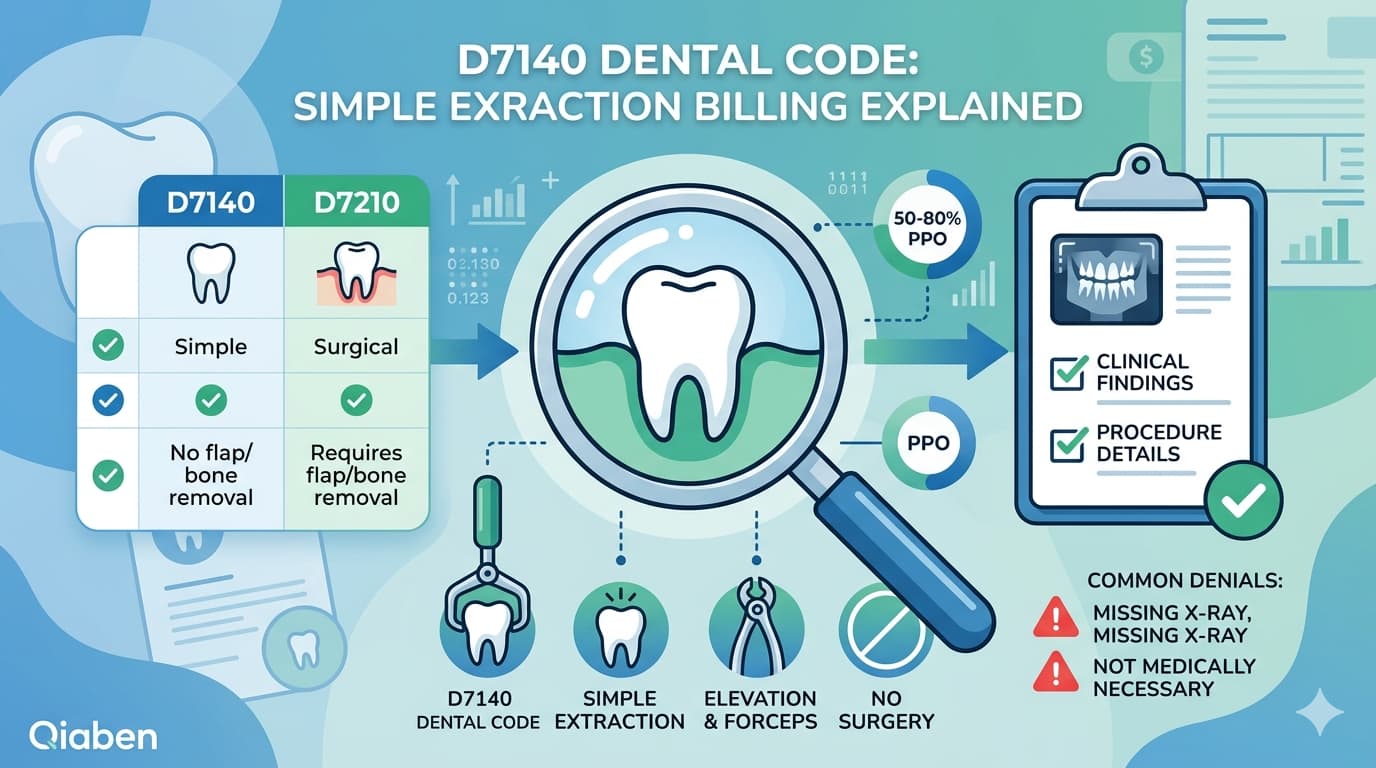
Dentist offices: Tooth charts, dental hygiene tracking
Dermatology: Tracking and Exam Notes for Dermatologic Lesions
Pediatrics: Growth charts, vaccine records
Custom Forms and Fields
Want to include certain data fields based on your practice? Use OpenEMR’s Layout-Based Forms to:
Capture detailed patient symptoms
Track diagnosis patterns
Log specialty-specific procedures
Automate Your Workflow
Let OpenEMR handle repetitive tasks:
Create Appointment types for your clinic.
Auto-load billing codes
Set reminders or alerts according to your specialty

How to Customize OpenEMR (Step-by-Step)
Step 1: Add Specialty Modules
OpenEMR provides plugins and modules that you can activate:
Dental charting tools
Dermatology photo upload features
Pediatric growth chart integration
Step 2: Create Custom Forms
Go to Administration > Forms > Layout and begin creating the forms you want. I mean, think intake forms, SOAP notes, or specific treatment records.
Step 3: Set Up Decision Rules
Leverage Clinical Decision Rules as prompts for routine rechecks or alerts, such as for skin mole checks in the field of dermatology.
Step 4: Customize Billing
Update your billing sheets and templates with the correct CPT and ICD-10 codes. That means your billing adds up, and you’re strip-free.

Real-Life Examples
Dental Practices
- Interactive tooth charts
- Forms for cleanings, fillings, and surgeries
- Integration with dental X-ray tools
Dermatology Clinics
- Easy lesion tracking with photo uploads
- Pre-built skin condition templates
- Smart alerts for regular skin checks
Pediatric Clinics
- Child growth tracking
- Vaccine history and alerts
- Templates for developmental checkups

Other Specialties (OB-GYN, Cardiology, etc.)
- OB flow sheets and fetal monitoring
- Cardiac health assessments
- EKG documentation features
- Maintaining Your Custom EMR Want to keep your custom EMR in prime working condition?
- Backup your custom forms often.
- Keep a log of what’s changed.
- Always test an extensive update before applying it to your live system.
- Let Qiaben Help You Get It Right.
- At Qiaben, we work for you with OpenEMR—not you for us. Whether you’re a dentist, dermatologist, runs in your field and we are full of:
- Build custom forms
- Install specialty plugins
- Optimize your EMR workflows
- Provide ongoing support
- Get in touch with our team and lets develop the EMR your practice needs.
Wrapping Up
OpenEMR afforded is not just a ledger system— it’s an open workbench to do what you need in practice. With these mods, you’ll work faster, bill smarter and give better care.

Frequently Asked Questions
1. Is OpenEMR customized for e.g. dental clinics?
Absolutely. For dental charting and customized forms it is a great fit
2. What about dermatology
You bet you can also turn on high-res image uploads and throw in templates for skin conditions.
3. What does the paediatric feature in the OpenEMR allow for?
Child-specific instruments e.g. growth card and vaccination card are also quite accessible.
4. Is there a chance that I would lost my tweaks when I updated?
- Well, not if you do best practices!! Remember to test updates and backup.